Showing posts with label KAPE. Show all posts

Monday, May 3, 2021

SEPparser Released

What is SEPparser?

SEPparser is a command line tool examine artifacts from Symantec Endpoint Protection (SEP). SEPparser can be ran against a single file, directory, dead box system (write-blocked hard drive of mounted collection), or for live response.


Capabilities

  • Parse settings for log files
  • Parse the following log files:
    • Security log
    • System log
    • Firewall Traffic log
    • Firewall Packet log
    • Application and Device Control log
    • AV Management plugin log
    • Daily AV logs
  • Extract packets from Firewall Packet log
  • Parse ccSubSDK database into csv reports
  • Extract potential binary blobs from ccSubSDK
  • Parse VBN files into csv reports
  • Extract quarantine data to file or hex dump
  • Preform hex dump of VBN for research

Using SEPparser

SEPparser can be ran on Windows or Linux. Running SEPparser by itself shows all the available options.


There are quite a few options, but it is straight forward to use.


Basic usage

To run SEPparser, all you need to do is point it to a file (-f) or a directory (-d) and SEPparser will take care of the rest. Output will be stored in the current directory SEPparser is ran from. This can be changed using OUTPUT (-o) option.


But what if we don't know the location of the Symantec files? The -d option can be used at the base directory and all files will be scanned from that path recursively. To speed up the process, or if we are using a script, we can use KAPE mode (-k) in conjunction with -d. What this does is SEPparser will only scan files in locations where SEP data is stored instead of every file.

If we want to append data to output files that SEPparser already created, the append (-a) option can be used.

Once SEPparser is finished a series of csv files will be created.


Time Zones

Some of the time stamps in SEP's data are in UTC and others are recorded in the time zone set on the device they came from. There are a couple of ways to get all the time stamps to be in UTC.  

  1. If the registrationInfo.xml file is found during the scan; the offset will be automatically applied.
  2. The -r option can be used to point to the location of the registrationInfo.xml file so the offset can be automatically applied.
  3. The -tz option can be used to manually enter a time zone offset.


Logging

SEPparser has a logging feature (-l) that can be used to save the console output to a log file. This can be useful to check for errors during parsing. If an error occurred, the -v option can be used to get a more verbose output of what went wrong.


Quarantine Files (VBN)

When it comes to quarantine files, SEPparser has some additional features that can be useful.  

SEPparser has the ability to extract (-e) the quarantined data or it can dump the data to the console in hex format with the -qd option.


SEPparser can also produce a hex dump of the VBN itself. While SEPparser does a rather excellent job of parsing VBN's into the csv report, there is still data that it cannot. There are some parts of the VBN format that are unknown. The hex dump can help researchers to understand and figure out what these unknown parts of the file format mean.


SEPparser also contains hash-file (-hf) option. This can be used when parsing VBN files for reports. Because there can be extra data in the VBN file, the hash reported is not always the hash of the actual file. With the -hf option, SEPparser will record the MD5, SHA1, and SHA256 of the actual quarantined data.


ccSubSDK Database

SEPparser has an extract-blob (-eb) option that can be used when parsing the ccSubSDK database. With this option enabled, SEPparser will extract anything that could be an executable contained in the ccSubSDK database.


Packets

SEPparser has one more trick up its sleeve. When parsing the raw.log (packet log), SEPparser will extract the packets from the log into a text file. This text file can then be loaded into a tool, like Wireshark, to examine the packets. SEP only captures the headers and not the data associated with it.




There is a public GitHub repository, located at https://github.com/Beercow/SEPparser, containing SEPparser and a wiki with the file formats for the SEP artifacts. KAPE also includes targets and modules for Symantec Endpoint Protection and SEPparser. If you find any errors or would like to contribute, issues/pull requests are always welcome. 

Tuesday, June 23, 2020

KAPE at Scale

After reading @Carlos_Cajigas post and a personal demonstration (thanks for that), it got me thinking. What if we didn't have to download KAPE to the system to run? Something along the lines of Sysinternals Live. Further more, what if after the collection was done, the remote server automatically ran the modules you want? And while we are at it, why not send an email when everything is done processing so we don't have to periodically check to see if everything is done. This would eliminate downloading tools to the endpoint, processing the artifacts on the endpoint, and waiting around for everything to finish. With that goal in mind, that is what I created.

The Setup:

We are going to need two things to set this up:
1) KAPE
 KAPE can be downloaded from here
2) A web-server
 This can be either a local or cloud based server.

The first thing we want to do is download and setup KAPE on the web-server. I am not going to go into detail on setting KAPE up. There is plenty of documentation out there. Once KAPE is ready, we need to make an SFTP configuration for KAPE, this is how we will send the collection back to the server. At a minimum, the SFTP account is going to need upload and delete access. More information can be found here on setting up SFTP for KAPE.

Example configuration file.

We can now create a scheduled task to run KAPE in SFTP mode when ever the server starts.


Next we can setup the web-server. I created a script to do all the heavy lifting so you don't have to. It can be found here. What this script does is sets up a web-server with WebDAV enabled, creates the accounts needed to access the site and creates a WMI subscription for the automation. *Please note, this is not production ready. You will need to secure things better than what the script does.

Web-server setup:

Here's a breakdown of what the script is doing:

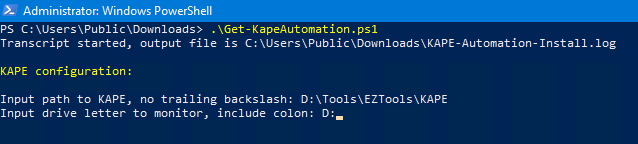
The first thing we need to know is the install location of KAPE and the drive we want to monitor for incoming collections.


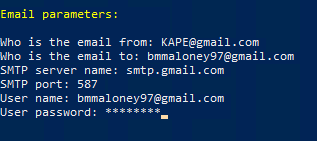
Next up, email parameters. *Note: the email password will be encrypted with the system account.


The script will then install the needed features for the web-server. WebDAV is enabled so we can mount KAPE remotely as a file share. This way, there is no need to download KAPE to the endpoint. After that, we need to setup the user and group that will access the site. This group has read only access so nothing can be written back to the KAPE folder when mounted.


After that, the script will finish configuring WebDAV, change the WMI Provider Host Quota Configuration and setup the WMI subscription. There are a couple of  reasons I went with a WMI subscription. There isn't a script laying around to accidentally get deleted and this also runs KAPE under the system account. Once done, the system will need to reboot.


Ready for action:

With setup complete, we can now test everything out. On the machine you want to collect from, check and see if you can get to the web-site. You should see the directory for your KAPE instance.


Now that we know we can reach the site, lets mount it as a network share.


After that, we can run KAPE. For the automation piece we will need to use the KAPE_automation module. The module takes two variables: module and mvar. The module variable is the modules you want KAPE to run on the collection. Just like KAPE itself, this is a comma separated list. The mvar variable takes a key:value pair but instead of using ^ as a separator, it uses ◙ (Alt+10) for the separator. See the example in the module.


Let's try it out. The following command will collect the registry hives, $MFT, and Symantec AV logs. They will be sent to the server via SFTP, mount the vhdx, and parse the Symantec logs and create a time line with the date range of  06/19/2020-06/12/2020. Once complete, an email will be sent when everything is done.

\\192.168.0.20\kape\kape.exe --tsource c --target RegistryHives,FileSystem,Symantec_AV_Logs --tflush --tdest C:\temp\tout --mdest C:\temp\tout\mout --mflush --module KAPE_Automation --mvars module:SEPM_Logs,Mini_Timeline,Mini_Timeline_Slice_by_Daterange^mvar:dateRange:06/19/2020-06/12/2020◙computerName:Collection --vhdx %m --scp 22 --scu KapeSFTP --scpw NrsxPmU8XWe72WBs --scs 192.168.0.20 --debug --trace


Empty case folder on collection server.

No email.

Collection complete and uploaded to server.

Parsed Symantec AV logs.

Parsed timeline.

Email sent upon completion.

Conclusion:

I hope this helps to setup remote collection and parsing whit KAPE. If there are any ideas or suggestions to help improve the automation of KAPE, please leave a comment. You can also leave an issue or pull request at the GitHub page.